 ChatGPT by OpenAI
Connect TrainerDay to ChatGPT
Manage your training calendar and view your athlete data directly in ChatGPT.
Setup
OpenAI changed this flow in October 2026. These are the current steps — the old ones are at the bottom of the page if your ChatGPT still looks like that.
Log in to TrainerDay first
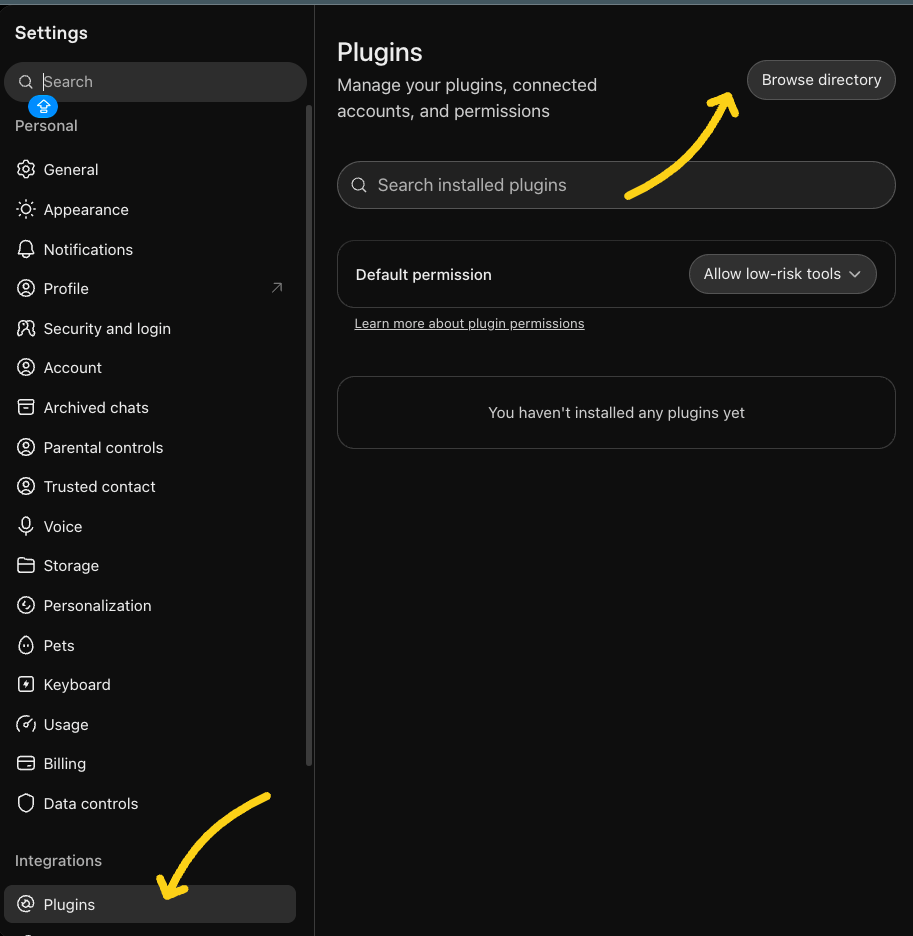
Open Settings → Plugins
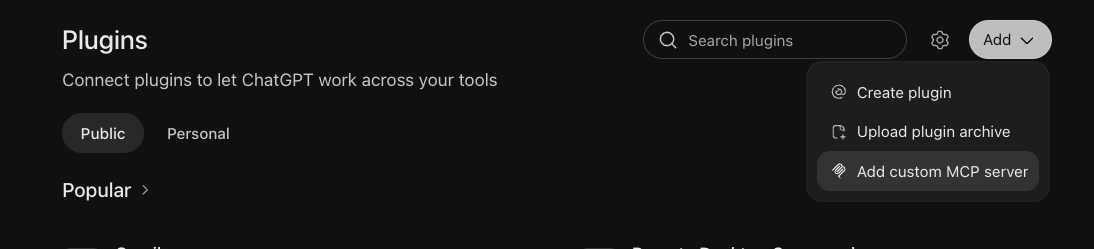
Add → Add custom MCP server
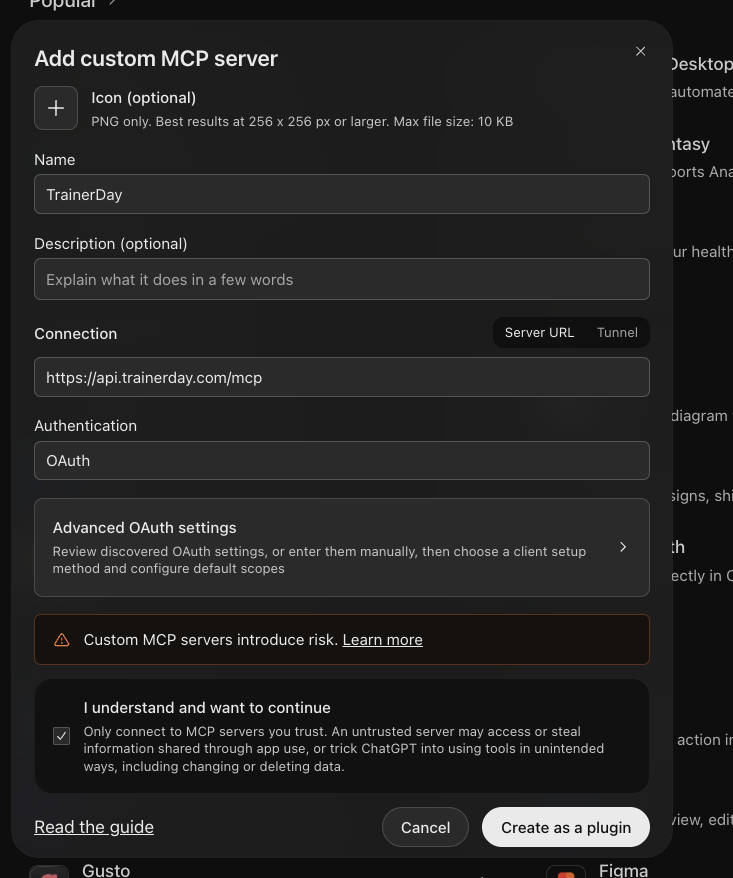
Fill in the dialog and create
Icon and description are optional — leave them empty. Skip Advanced OAuth settings; ChatGPT discovers everything on its own, so you do not need a client ID or secret.
Tick I understand and want to continue, then click Create as a plugin.
Approve access
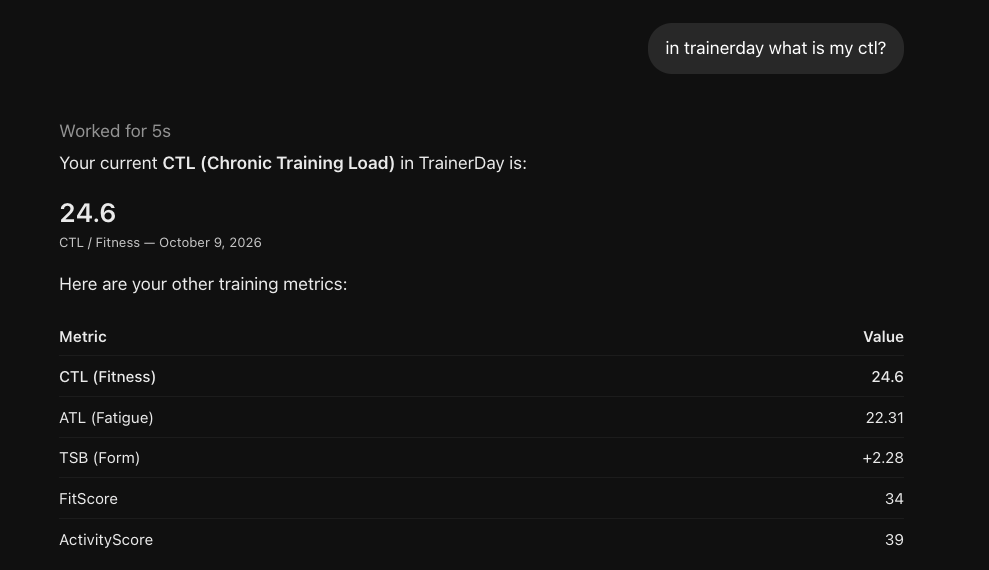
Ask it something in a new chat
If ChatGPT does not reach for it on its own, click + in the message box and pick TrainerDay.
If something goes wrong
TrainerDay is not in the + menu
Start a new chat first — it only shows up in chats opened after you added it. If it is still missing, go to Settings → Plugins, open the … next to TrainerDay and choose Manage plugin. If there is a Refresh schema option there, click it.
ChatGPT says it cannot see your data
You are probably in an older chat. Open a new one and switch TrainerDay on with the + button.
The approval page keeps sending you in circles
Log in at trainerday.com in the same browser first, then add the plugin again.
There is no Plugins item in Settings
Your ChatGPT is still on the older flow. Turn on Developer mode under Settings → Security and login, then follow the old instructions at the bottom of this page. On a Business or Enterprise workspace an admin may have to allow custom plugins first.
Still stuck
Email hello@trainerday.com and tell us which step you are on.
What You Can Do
Once connected, ChatGPT can read and manage your TrainerDay data:
Old instructions (before October 2026) If your ChatGPT still has Developer mode and a Plugins item in the sidebar, use these. Show
These steps no longer match the current ChatGPT. Kept here only for accounts that have not been updated yet.
- Log in to TrainerDay first at trainerday.com, in the browser you normally use.
- Turn on developer mode. On chatgpt.com open Settings → Security and login, find Developer mode and switch it on. ChatGPT marks this elevated risk because it lets you add servers OpenAI has not reviewed — that warning is about unknown servers in general, not TrainerDay. Leave Enforce CSP in developer mode alone.
- Open Plugins and click +. Click Plugins in the left sidebar, then the + to the right of the search box. The New Plugin dialog opens.
- Fill in the New Plugin dialog. Name TrainerDay, description empty, Connection Server URL, URL
https://api.trainerday.com/mcp, Authentication OAuth. Skip Advanced OAuth settings. - Accept the warning and click Create. Tick I understand and want to continue, then Create.
- Refresh the schema. Back on the Plugins page, click the … next to TrainerDay, choose Manage plugin, and click Refresh schema. This is the step everyone missed — ChatGPT often would not load the tools without it.
- Approve access when ChatGPT sends you to TrainerDay, and click Allow.
- Switch TrainerDay on in a new chat with the + button in the message box. You do this in each new chat.